
Case Study #2
A global sales team was stuck with an Excel sheet too slow to load, too cluttered to navigate, and full of tabs nobody used. We redesigned their workflow into a Power BI dashboard.
My Role
UX Designer
Duration
Jun – Aug 2025
Team
2 UX Designers, 3 Data Scientist, 1 Scrum Master
Some details have been omitted due to NDA constraints. This case study highlights my process and key outcomes while respecting confidentiality.
00 - Project Overview
From Spreadsheet Chaos to Dashboard Clarity


A global sales team was drowning in an Excel sheet that had outgrown its purpose. Too slow to load, too complicated to navigate, and packed with tabs nobody used. We were brought in to fix that, designing a Power BI dashboard that gave the team a cleaner, faster, and more intuitive way to track and understand their sales performance.
This was a real client project with real constraints. A tight timeline, a tool with its own limitations, and a team that had been working around a broken system for too long. Getting it right mattered.
The design challenge: How do you take a spreadsheet that a global sales team depends on every day and turn it into something they actually want to use?
01 - Early Pivot
Plot Twist: Wrong End User
UX designers joined the project a month in, after the data science team had already laid the groundwork. Our first step was to identify the right end user. The president of the company had initially been identified as the primary user, so we set up interviews and aligned our research around her.
After a few weeks of scheduling, it became clear that the day-to-day users of the dashboard were actually her sales team. We realigned our research focus accordingly, interviewed the team directly, and moved forward with a much clearer picture of who we were designing for and what they actually needed.
Weeks to Schedule
Coordinating with the primary stakeholder took longer than expected, which gave us time to reassess who the real end users were.
Immediate focus on real users
Once we redirected our research to the sales team, everything became clearer. We had the right people and the right questions.
02 - Research & Insight
Listening to the People Actually Using It
Once we had the right people in front of us, the picture became a lot clearer. The team was not just frustrated with the load times. They struggled to find what they were looking for, did not know which tabs were relevant to their role, and found the filter system so unintuitive that most of them had just stopped using it altogether.

Excel Sheet Tabs
On top of user research, we also dug into Power BI's limitations early. This turned out to be one of the most important things we did. Power BI has real constraints when it comes to custom visuals and layout flexibility, and understanding those constraints upfront meant we were not designing things that could not be built. It also meant we could have smarter, more productive conversations with the data science team from day one.
PAIN POINT
Too slow to open
The spreadsheet took so long to load that users would regularly abandon it before they even got started.
PAIN POINT
Tabs nobody used
8+ tabs with no clear hierarchy. Most of them went untouched because nobody knew what they were for.
PAIN POINT
Filters that didn't work
The filter system was so extensive and unintuitive that most users had just stopped using it altogether.
PAIN POINT
Too rigid to change
Making any updates was a headache. Nobody wanted to touch it in case they broke something.
03 - Design & Build
Less Tabs, More Clarity
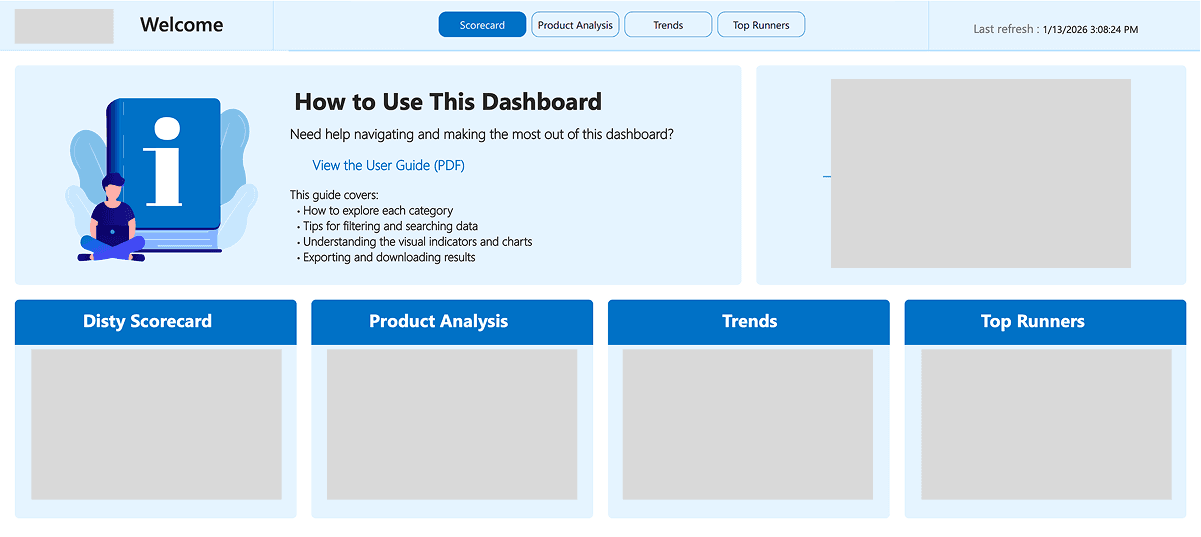
The biggest opportunity was information architecture. Eight-plus tabs of raw data was overwhelming, so we proposed replacing it with a category and subcategory model. Collaborating with the data science team, we combined UX thinking with data expertise to create a structure that felt intuitive and was technically sound.

Main menu of dashboard
The Filter Nobody Could Use
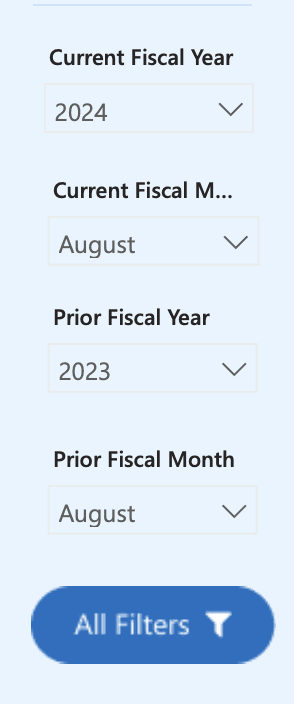
Filter section of dashboard
Filters sound like a small thing, but they had a big impact. Excel's extensive filter system was actually a problem. Too many options made filtering slow and time-consuming.
We stripped it back to only what the team actually needed, then worked through the UX challenge of presenting those filters intuitively within Power BI's constraints. After exploring multiple approaches, we landed on a solution and handed it off to the data science team to build.
Where Design Meets Data
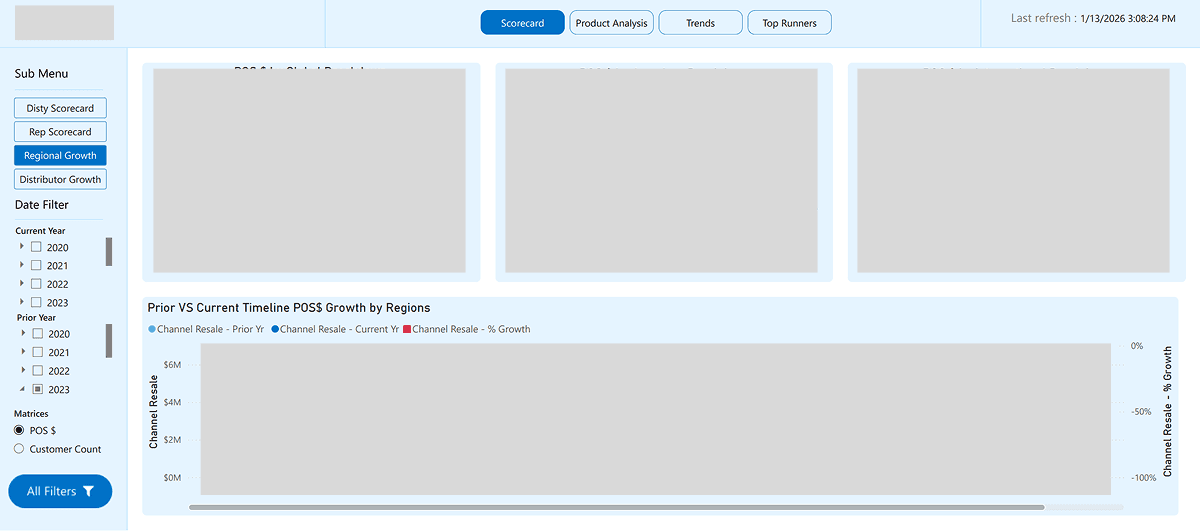
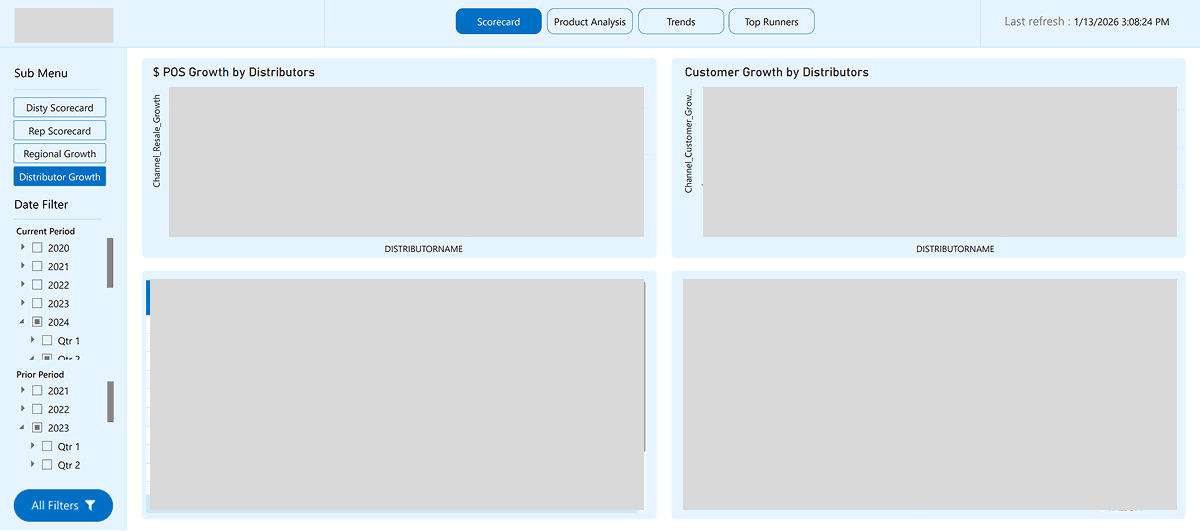
Translating Figma designs into Power BI required a lot of back and forth before finding a workflow that worked. We designed the full background in Figma, exported it, and handed it to the data team to use as a backdrop, layering charts and interactive components on top. We then reviewed each screen together on calls, catching misalignments and fixing spacing until the final product looked and felt designed, not just functional.
The screen below have been heavily redacted in accordance with client confidentiality agreements.
04 - Constraints
Balancing Time and Technical Limitations
Power Bi Limitation
Not everything we designed could be built. Power BI's visual constraints meant letting go of some ideas and designing around what the tool could actually do.
Tight Timeline
July to October. Two teams, a hard deadline, and a lot of moving parts. Prioritization was the only way through.
05 - Usability Testing
When Usability Testing Does Not Go as Planned
The first round of usability testing did not go as planned. We had set up individual sessions, but when the time came, all three users joined the same call along with their manager and their manager's manager. What followed was a group session where users helped each other through tasks, talked over each other, and generally made it impossible to get clean individual feedback. We got some useful insights out of it but it was far from ideal.
After the first round we were firm. One-on-one sessions only, no exceptions. The clients agreed, and the difference was immediate. With individual sessions we could actually observe how each person navigated the dashboard on their own, where they hesitated, what confused them, and what clicked. The feedback was specific, actionable, and honest. The changes we made after those sessions were the ones that really sharpened the final product.
First round failure
Three users, two managers, one call. Users helped each other through tasks, which made it impossible to get clean individual feedback.
Firm on second round
One-on-one sessions only. With individual sessions we could observe where users hesitated, what confused them, and what actually worked.
06 - Usability Testing
Delivered. Mostly.
When the dashboard was handed over, users were able to navigate it confidently and complete every task they needed to perform. That felt like a real win given everything the project had thrown at us.
There was one outstanding issue though. The data on the dashboard was not matching what the client expected to see on their end. Because our team had restricted access to their systems, the data science team could not diagnose it remotely. After a few calls with the client's IT team, they traced the issue back to inconsistencies in how data was being input on their side. It had nothing to do with the dashboard itself, but it was a reminder that even a well-designed product depends on the quality of what feeds into it. Their IT team is currently working through the cleanup.
The takeaway: Great UX can only go so far. The data behind a dashboard matters just as much as the design on top of it.